USER GUIDE
EvoAccess™ (Accessibility)
EvoAccess helps you find and fix accessibility problems on your website and in your PDFs, so your content works for every resident — including people using screen readers or keyboard navigation. It checks against the WCAG 2.1 AA standard that public-sector sites are expected to meet.
Before you begin
There is nothing to configure before you start — EvoAccess is included with your site at no extra cost, and you can run your first scan right away. Open the app from Apps › EvoAccess at the top of the admin.
It helps to have some real content on your site first (a few pages, and any PDFs you have uploaded), so a scan has something to check. The more of your live site exists, the more useful the results.
1 Run a Site Scan
Open Apps › EvoAccess › Site Scan and click Run scan. EvoAccess checks the pages across your site for accessibility issues and builds a report. A scan takes a little while; the page updates on its own and lets you know when it finishes.
The same page shows your full scan history — every scan, with a Trigger column telling you whether it was Manual (someone clicked Run) or Automatic (EvoAccess ran it on a schedule). Click View on any scan to open its detailed report.
The report groups results by content type (Pages, Forms, FAQs, Departments, News, Events, and more) and lists the pages with the most issues first. Each issue includes a plain-language description of what is wrong and a "Learn more" link with guidance on how to fix it. By default the report shows only pages that have a problem; you can switch to show every page that was checked.
2 Check a single page with Page Preview
When you want to check one page as you work on it, open Apps › EvoAccess › Page Preview. Paste in a page address (either a full web address or a site path like /about-us/) and click Load page.
EvoAccess shows the page with an ADA Check running live: it highlights the elements with problems right on the page and lists each issue in a side panel. This is the fastest way to confirm a fix worked — make your edit on the page, reload it in Preview, and watch the issue disappear.
3 Check and fix PDFs with PDF Accessibility
PDFs are one of the most common accessibility gaps on government sites. Open Apps › EvoAccess › PDF Accessibility to see how your uploaded PDFs are doing. The landing page shows overall stats and an impact-ranked list of the documents that need the most attention.
From here you can:
- Scan all unscanned — check every PDF that has not been looked at yet.
- Open a document to see its specific violations, where it is used on your site, and its scan history.
- Apply a cleanup — for many common problems, EvoAccess can automatically repair the document for you and produce a more accessible version. Review the proposed changes, then apply them.
Documents EvoAccess sets aside. Two kinds of PDF cannot be fixed by any automatic tool, and EvoAccess marks them so the list stays honest:
- Scanned image – not cleanable — the document is a picture of a page (or a stack of them) with no real text underneath. Replace it with a text-based PDF exported from the original Word, Excel, or publishing file, then scan again.
- Password-protected — the document needs a password just to open it, so neither EvoAccess nor a visitor's screen reader can read it. Open the file in the program that made it (or Acrobat), remove the document open password, and upload the unlocked copy in place of the original. EvoAccess notices the new file and checks it automatically.
Reviewing "characters aren't mapped" issues. Some PDFs use decorative symbol characters — most often the little squares and checkmarks drawn on paper-style forms — that a screen reader cannot read aloud, because the file never says what they mean. When a scan finds these, the document's page shows a Character review panel right on the violation card. Each flagged character appears as a small picture of that spot in your document, with a red box around the mark, so you can see exactly what the scanner is talking about. For each one you can:
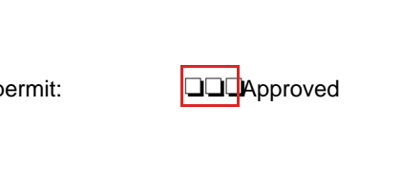
- Map it to text — pick one of the quick suggestions (checked box, empty checkbox, checkmark, bullet, arrow, star) or type your own short description, then click Map to text. This writes the meaning into the PDF so screen readers can announce it. The document looks exactly the same afterward — nothing visible changes. This is the best choice for almost every flagged character.
- Remove the mark — if the character is purely decorative and means nothing, you can remove just that mark from the document. Unlike mapping, removal changes what the document looks like, so you will be asked to confirm before it runs.
Nothing touches your document until you click Apply character fixes. A copy of the current PDF is always saved first and can be restored from the Cleaning History tab for 90 days, and a fresh verification scan runs automatically afterward.
Accepting an issue you are not going to fix. Every violation card also offers Accept this issue (won't fix), with room for a short note explaining why. Accepting moves the card out of your active to-do list and labels it as accepted, which keeps the list focused on the problems you are still working on. Be aware of what accepting does not do: the issue stays in your scan results and still counts against the document's score — it is a record of your decision, not a fix. You can un-accept an issue at any time.
If a specific document still will not validate after you have run all of the built-in cleanup (Smart Cleanup, any applicable Deep Clean options, and a verification scan), an Email the EvoGov support team link appears just below the workflow steps. Clicking it opens a prefilled email with a link to that exact PDF so the support team can analyze it and determine whether additional cleanup features can resolve it. Please use this option sparingly.
4 Turn on the visitor accessibility tool
EvoAccess now includes its own visitor-facing accessibility tool, and it is part of every paid EvoAccess plan at no extra cost. It appears on your public website and gives visitors a set of controls to adjust how the site looks and reads — such as changing text size, contrast, and spacing — so they can use it the way that works best for them.
Because this is built in, it replaces third-party overlay tools such as UserWay and AccessiBe. If you are paying for one of those separately, you can switch on the EvoAccess tool and drop the outside subscription — there is nothing extra to buy and nothing to wire in.
Beyond the visitor controls, the built-in tool also applies a growing set of automatic compliance adjustments to your public site, correcting common accessibility issues on the front end without you having to touch each page one by one.
To turn it on, open Apps › EvoAccess › Website Widget Settings, switch it on, and choose which corner of the screen it sits in (bottom right, bottom left, top right, or top left). Save, and your choice takes effect on your live site.
Resources
EvoAccess includes a set of plain-language resource pages to help you understand accessibility and keep your site compliant over time. Find them in the EvoAccess menu:
| Resource | What it covers |
|---|---|
| Getting Started with Site Scanning | How the site scan works and how to read its results. |
| Getting Started with PDF Mitigation | How to approach PDF problems and what "mitigation" means for your documents. |
| Recommendations | Concrete steps you can take to improve and maintain compliance. |
| ADA Technology | Background on the technology the scanning is built on. |
| Terms and Conditions | EvoGov's ADA terms and conditions. |
Next steps
Run a Site Scan and a PDF Accessibility scan to get your baseline, then work down the reports starting with the worst offenders. Use Page Preview to confirm each fix. Turn on the visitor widget so residents have accessibility controls right away, and skim the Recommendations resource for habits that keep new content accessible as you add it.
Because EvoAccess is in Beta, reach out to EvoGov support if a result looks wrong or you are unsure how to fix something — your feedback helps improve it.
Related guides: see the User Guides index for Pages and Media Library (where most of the content EvoAccess checks is created and uploaded).