GETTING STARTED
Post a News Item
Announce something — a road closure, a new program, a press release — and get it onto your website and homepage. A few minutes once you have done it once.
Before you begin
You need a dashboard login that can see News Posts in the left sidebar. If a photo is going with the post, have it on your computer — you can upload it as you go.
Your site almost certainly already has at least one News Category (for example News, Press Releases or Public Notices). A post has to belong to a category to show up anywhere, so if Left menu › News Posts shows an empty category list, create one first — the News Posts guide shows how in one step.
A news post is not a page. It is an item in a list: the site's news page, a department's news area, and (usually) a news block on the homepage all show the latest posts automatically. So there is no menu step this time — publish the post in the right category and it appears wherever that category is displayed.
1 Start a new post
Go to Left menu › News Posts › Add News Post. The post editor opens.
2 Write the headline and the story
Type the headline in Title. Keep it short and specific — Main Street closed June 3-5 for paving beats Important road information. Subtitle is optional; leave it blank unless you have a natural second line.
Type the announcement itself in Post Content. It is the same editor used on pages: B for bold, the Format dropdown for headings, the chain-link icon to add a link. Put the most important facts — what, when, where, who to call — in the first two sentences, because news lists often show only the beginning.
3 Pick a category
Under Categories, tick at least one box. This is the step people forget: a post with no category is saved but never shown anywhere on the public site.
If you are not sure which one, pick your site's general news category. A post can be in more than one category, so a Parks announcement can go in both News and Parks & Recreation.
4 Add a photo (optional but worth it)
Posts with a picture get noticed; posts without one look like a to-do list. Click the Main Image field. The Media Library pop-up opens — click an image already in the library, or drag a photo from your computer straight into the pop-up to upload it on the spot, then click it.
Fill in Alt Text with a plain description of the photo, such as Paving crew and roller on Main Street. It is read aloud to visitors who use screen readers and counts toward your accessibility score. Then look at the preview: drag the dot onto the part of the photo that matters most, so it stays in frame when the site crops the picture to different shapes.
5 Publish
Check Date Publish. It defaults to right now, which is what you want for an announcement. (Set a future date and time if it should appear later — the post stays hidden until then.) Leave Date Expires blank unless the post should disappear on its own, like a sale that ends.
Set Publication Status to Published and click Save Post.
6 Find it on the site
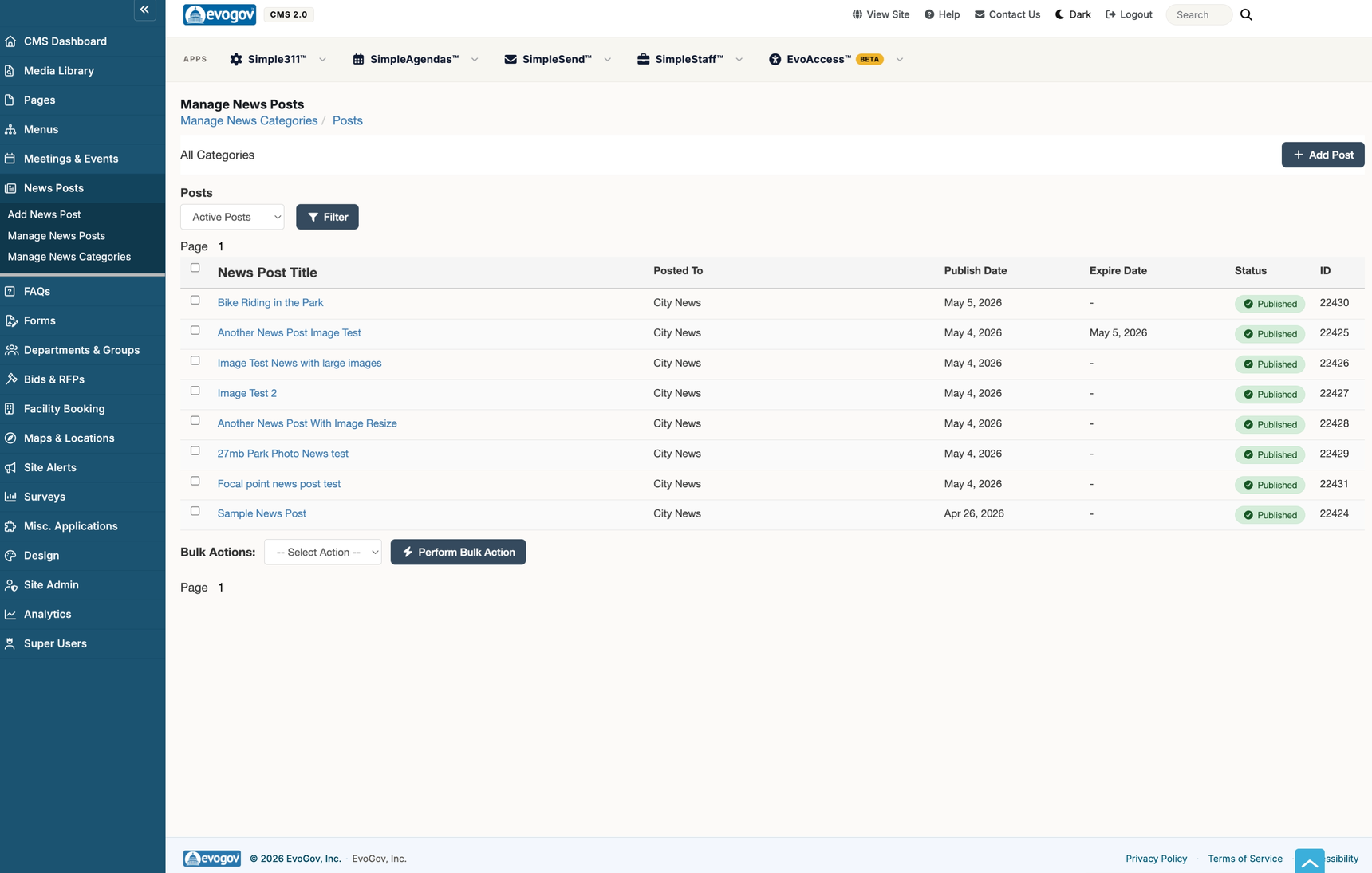
Click View Site in the dashboard's top bar. Open the news page (or the department page for the category you picked) and your post should be at the top of the list. If the homepage has a news block that uses your category, it is there too.
If something looks wrong
| What you see | What to do |
|---|---|
| The post is saved but does not appear anywhere on the site. | Open it and check three things in order: at least one Category is ticked, Publication Status is Published, and Date Publish is not in the future. |
| It is on the news page but not on the homepage. | The homepage news block only shows certain categories. Tick the category the homepage uses (often the general one) as well, and save. If you cannot tell which category that is, ask your Design Admin or EvoGov support. |
| The photo is cropped badly in the list. | Open the post and drag the dot on the Main Image preview onto the important part of the picture, then save. |
| An old post keeps showing above yours. | That post is marked Featured, which pins it to the top in some layouts. Open it and untick Featured, or feature yours instead. |
Next steps
- The News Posts guide covers categories, scheduling, expiry, archiving and the Featured option in full.
- Want to email or text the announcement to residents too? See SimpleSend.
- For a page that stays put rather than an item in a list, see Add a Page and Put It in the Menu.