USER GUIDE
News Posts
Share announcements, press releases, and updates with your community — each one grouped into a News Category so it shows up in the right place on your site.
Before you begin
A News Post always belongs to at least one News Category — the category is what controls where the post appears on your site (for example a "Press Releases" page or a "Parks & Rec" section). On a brand-new site there are no categories yet, so create a category first, then add posts to it.
News Posts share the same Page Editor used across the site for writing the body of the post, and news images come from the Media Library.
Everything lives under Left menu › News Posts. The main screen shows your News Categories; from there you can add posts and open individual posts to edit them.
1 Create a News Category (do this first)
From Left menu › News Posts you will see your list of categories. Click Add to create one (or click an existing category to edit it). Give it a Name, such as "Press Releases" or "Public Notices", and click Save.
The category's list view also shows how many posts are in each category, so you can see at a glance where your content is going.
2 Add a News Post
Go to Left menu › News Posts › Add News Post. Fill in:
- Title — the headline of the announcement.
- Subtitle (optional) — a short second line shown under the headline.
- Categories — check one or more categories the post should appear in. At least one must be checked or the post will not show up anywhere on the public site.
- Main Image — the photo shown with the post in news lists and widgets. See the next step for the image, its alt text, and the focal point.
- Post Content — the main text, written in the Page Editor. Add formatting, links, and images just like any other page.
- Date Publish — defaults to today, so a new post goes live as soon as you publish. Set a future date (and time) to schedule it.
- Date Expires (optional) — automatically stops showing the post after this date. Usually leave it blank so older posts stay in the category archive instead of disappearing.
Click Save Post when you are done.
3 Add the Main Image (photo, alt text, and focal point)
The Main Image is the photo your visitors see next to the post in news lists, homepage news widgets, and at the top of the post itself. Three controls work together here:
- Main Image — click the field and the Media Library pops up. Browse to the image you want, or drag a new image from your computer into the popup to upload it on the spot. A typical news image is about 300px wide by 200px tall; larger photos are fine — the site scales and crops them for you.
- Alt Text — a short description of the image for screen readers and ADA scans, for example "Firefighters standing in front of the new Station 2 engine". If you leave it blank, the image's filename is used automatically — but a real description is much better for accessibility, so take the few seconds to write one.
- Image preview with centering control (focal point) — once an image is chosen, a preview appears with a draggable dot on it. Different news widgets crop the photo to different shapes, so drag the dot onto the most important part of the picture (a face, a sign, the ribbon being cut) to mark what stays in frame across those crops. Click Reset to Center to put the dot back in the middle.
4 Set the post's status (publishing)
Every post has a Publication Status that decides whether the public can see it:
- Published — live on the site (once the publish date has arrived). Published posts appear in news listings, the RSS feed, and homepage news widgets.
- Draft — a work in progress; hidden from the public.
- Pending Approval — submitted for a reviewer to check before it goes live; hidden from the public.
- Unpublished — hidden from the public, but the post stays in your dashboard list.
- Archived — hidden from the public and from the default dashboard list. Use the "Show archived" filter on the manage screen to find archived posts again.
Set the status to Published when you are ready for people to see the post, then Save Post.
5 Manage News Posts
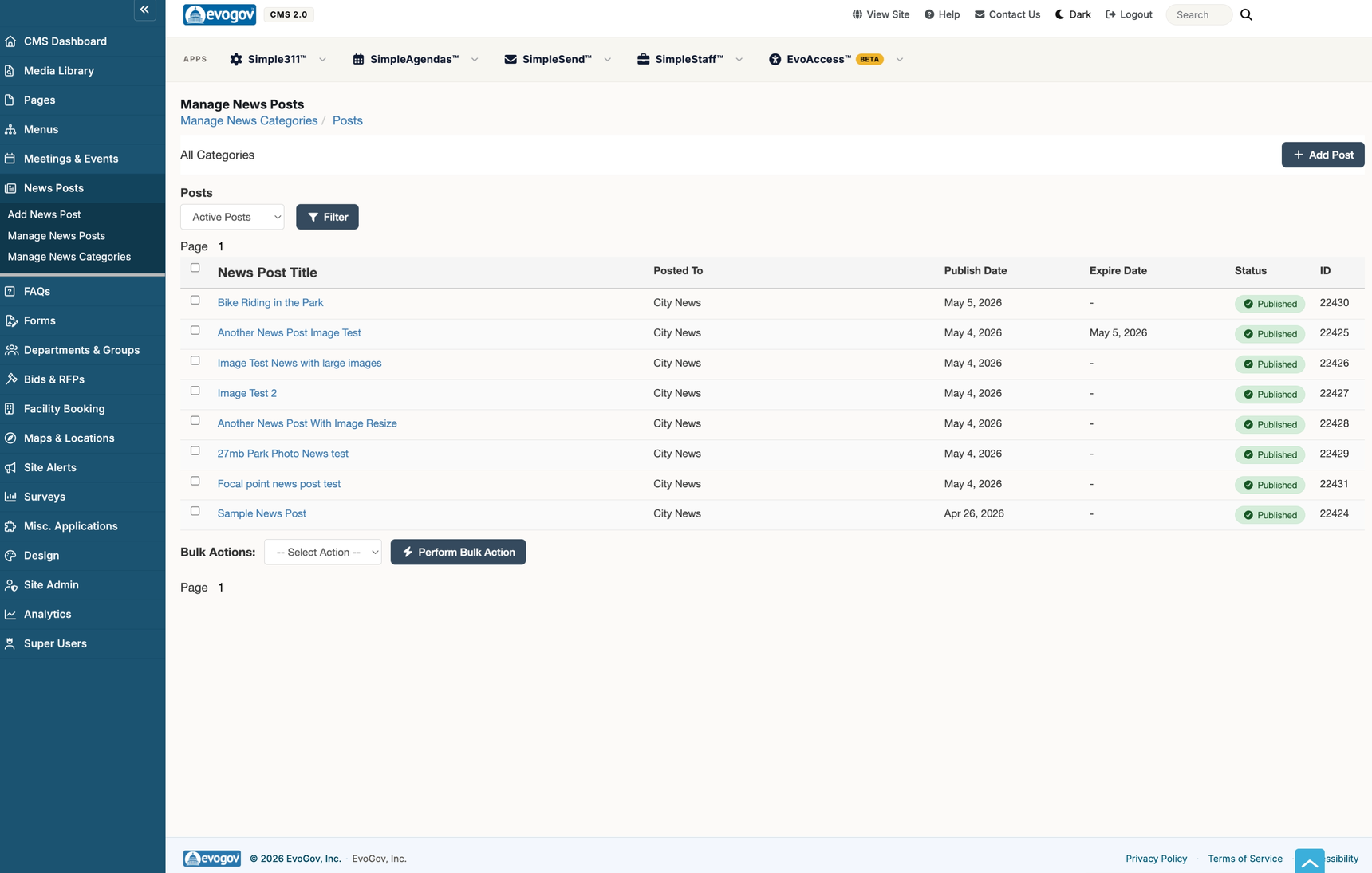
Go to Left menu › News Posts › Manage News Posts to see your posts, newest first. The list shows each post's title, which categories it is "Posted To", its publish date, its expiration date, and its current status.
You can filter to view archived posts, and you can select several posts to archive or delete them together in one action.
6 Edit, archive, or delete a post
Click a post's title to open and edit it, then Save. To take a post off the site without losing it, set its status to Archived (or use the bulk archive action on the manage screen). To remove a post entirely, use Delete — you will be asked to confirm.
News Post field reference
| Field | What it does |
|---|---|
| Title | The headline shown in lists and at the top of the post. |
| Subtitle | Optional short second line shown under the headline. |
| Featured | Optional checkbox. Some news widgets put featured posts at the top of the list with a bigger area and a larger photo. Use it sparingly — only for the posts you want to emphasize. |
| Main Image | The photo shown with the post in news lists and widgets. Click the field to pick (or drag-and-drop upload) an image from the Media Library. About 300px wide by 200px tall is typical. |
| Alt Text | A short description of the Main Image for screen readers and ADA scans. Left blank, the image's filename is used automatically — writing a real description is strongly recommended. |
| Image preview / centering control | A preview of the Main Image with a draggable dot. Drag the dot to mark the part of the photo that must stay in frame when widgets crop it to different shapes; Reset to Center puts it back in the middle. |
| Post Content | The main text of the post, written in the Page Editor. |
| Alternate URL | Optional. Bypasses the news detail page: clicking the post opens this link directly instead (handy for linking straight to a PDF from your home page). |
| Date Publish | The date (and time) the post becomes visible. Defaults to today; set a future date to schedule it. |
| Date Expires | Optional. The post is no longer visible after this date. Usually leave it blank so older posts stay archived in their category instead of disappearing entirely. |
| Publication Status | Published, Unpublished, Draft, Pending Approval, or Archived — controls public visibility. See Publishing and status. |
| Categories | Which News Categories the post appears in. Pick one or more — a post with no category will not show anywhere on the public site. |
| Mass Email to Topics | If your site has email newsletters configured, your newsletter topics are listed here so you can email the post to subscribers as you create it. See the Newsletter Builder guide. |
| Template / Global Template | Which page template the post's detail page uses. Leave both on Default unless your site's designer tells you otherwise. |
Next steps
Add a link to a News Category in your site navigation using the Menus guide, learn to upload and organize images in the Media Library guide, and get comfortable with the shared editor in the Page Editor guide.