USER GUIDE
Menus (Navigation)
Menus are the clickable navigation on your website — the bar of links across the top, the dropdowns, and the side menus that help visitors find their way around.
Before you begin
A menu is only useful once it points at real content. If your site is brand new, it helps to create the things you want to link to first:
- Pages you want in the menu (for example an "About Us" or "Contact" page).
- Any Calendars, News Categories, FAQs, Forms, Maps, or Locations you plan to link to.
You can still build a menu before that content exists — you would just use plain link addresses (URLs) instead of picking content from a list. But linking to real pages is easier and keeps the menu working even if a page's address changes later.
Menus live at Left menu › Menus. From there you can see every menu on your site, create new ones, and open a menu to add and arrange its links.
1 Open Manage Menus
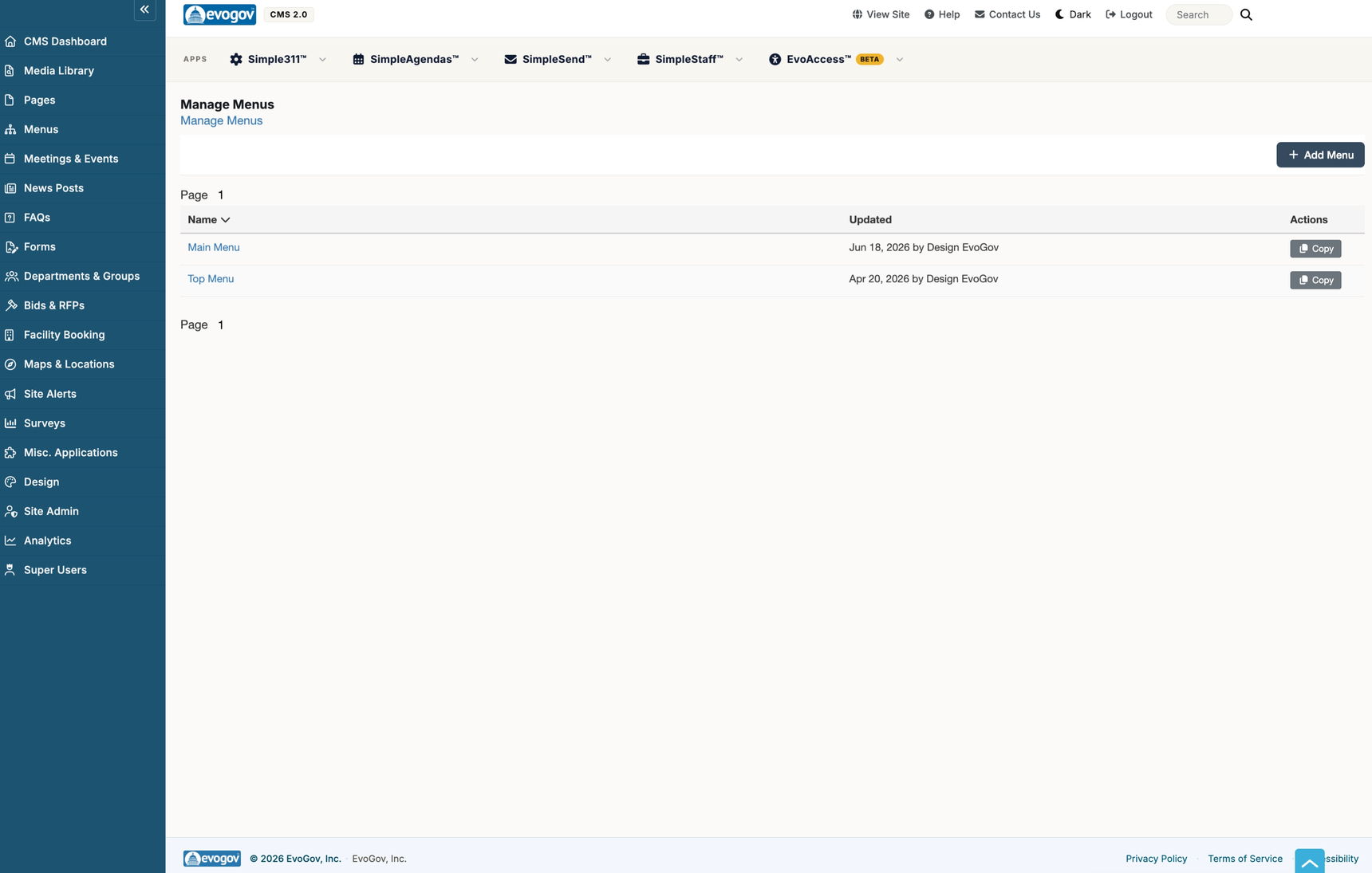
In the left sidebar click Menus. This opens the Manage Menus screen, a simple list of every menu on your site with the menu name and when it was last updated.
Click a menu's name to open it and edit its links. The Copy button beside a menu makes a duplicate you can safely experiment with.
2 Add a new menu
On the Manage Menus screen, click the Add Menu button in the top right. Give the menu a Title so you can recognize it later (for example "Main Navigation" or "Footer Links"), then click Save Menu.
The CSS ID and CSS Classes boxes are optional and only matter if your site's designer wants to style this specific menu. You can safely leave them blank.
3 Add items to the menu
With a menu open, click Add Item. A pop-up titled Menu Item appears. Across the top is a row of content types you can point the item at:
- Link — a plain web address you type in yourself.
- Page, Blog, Calendar, FAQ, Form, Gallery, Location, Map, News — pick existing content from a list.
- File — link straight to a document or image in your Media Library.
Fill in the Link Label — this is the wording visitors actually see and click. Then click Apply to add the item to the menu, and Save Menu when you are finished.
4 Link an item to a page or other content
In the Menu Item pop-up, click the content type you want (for example Page). A short list of your matching content appears — click the one you want. The menu item is now tied to that content, so if the page's address ever changes, the menu link keeps working automatically.
To link to an outside website instead, choose Link and type the full address into Link URL (for example https://www.example.gov). Turn on Open in new tab if you want that link to open in a separate browser tab.
5 Reorder and nest items
Menu items can be rearranged by dragging and dropping them in the list below the Add Item button. Drag an item up or down to change its order.
To create a dropdown, drag one item so it sits slightly indented underneath another item — the indented item becomes a child (a sub-menu link) of the item above it. You can also open an item's Edit pop-up and pick a Parent from the list to nest it that way instead of dragging.
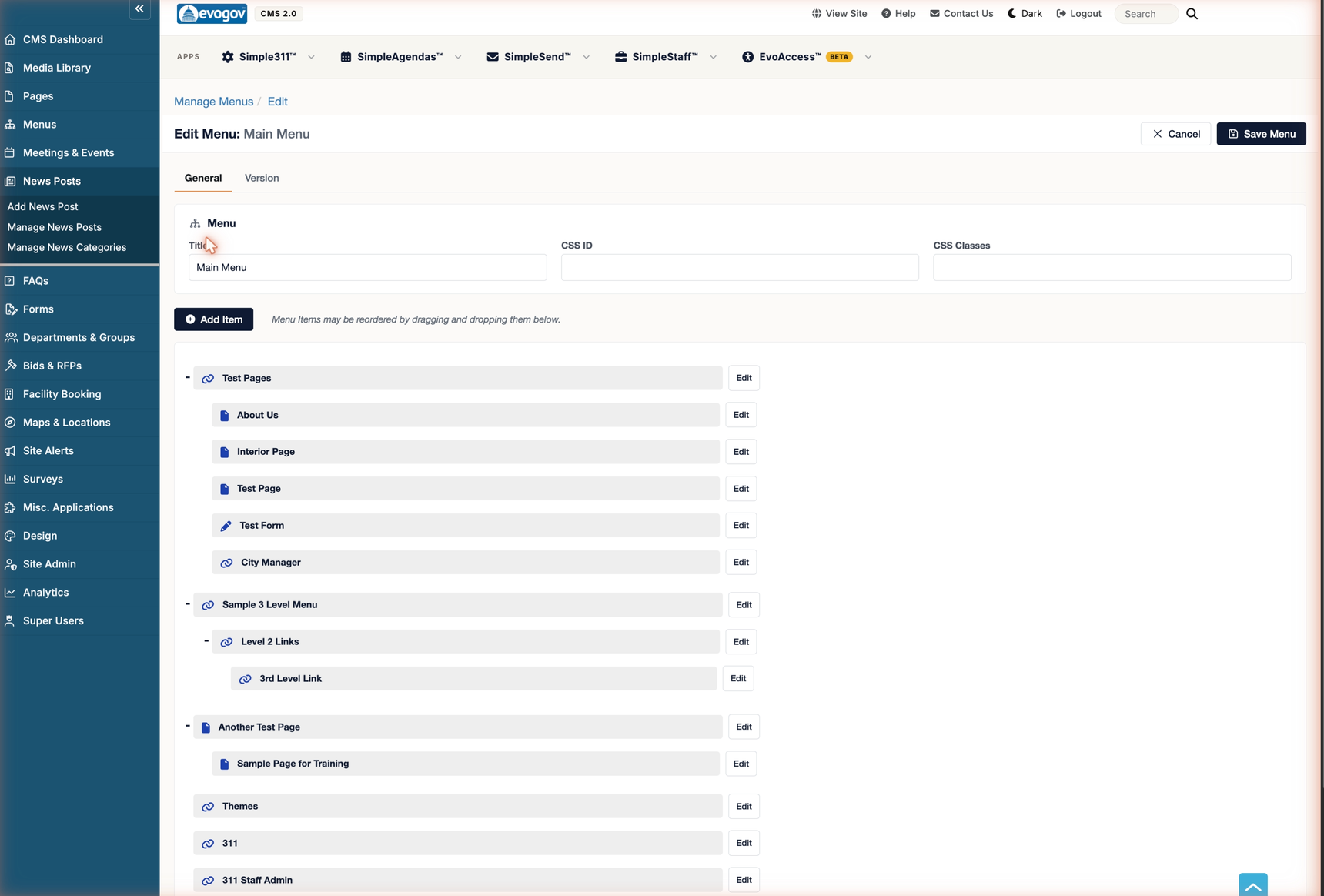
Click Save Menu to keep the new arrangement.
6 Edit or delete items and menus
To change an existing item, click its Edit pill in the list to reopen the Menu Item pop-up. Make your changes and click Apply, then Save Menu.
To remove a single item, open its Edit pop-up and click Delete Menu Item. To remove an entire menu, open it and click Delete Menu at the bottom of the page. You will be asked to confirm first.
Menu item field reference
| Field | What it does |
|---|---|
| Link Label | The text visitors see and click. Required. |
| Link URL | The web address the item points to (shown when the type is Link). Can be a path on your own site like /about-us or a full outside address like https://.... |
| Select Media File | Opens the Media Library so the item can link to a document or image (shown when the type is File). |
| Secondary Title | Optional. A short description shown above the link in some menu styles. Usually left blank. |
| Icon | Optional. A small icon shown before the item's text. Search the icon picker (for example "calendar" or "water") and choose Solid or Duotone. |
| Parent | Optional. Nests this item underneath the chosen item, creating a dropdown without dragging. |
| Aria Label | Recommended. Wording read aloud by screen readers to make the menu accessible. |
| Open in new tab | Opens the link in a separate browser tab. Handy for links to outside websites. |
| Hide | Keeps the item in the menu editor but hides it from the live site — useful for parking an item you are not ready to publish. |
| CSS ID / CSS Classes | Optional styling hooks for your designer. Safe to leave blank. |
Next steps
Build the content your menu points to: create Pages, set up News Posts, Meetings & Events, or FAQs, then come back and link them here. If you need a menu placed in a new spot on the page, contact EvoGov support.