Pages are the individual web pages of your site — things like "About Us," "Contact," "Parks & Recreation," or "Trash & Recycling." This guide covers creating pages, setting their web address and visibility, and publishing them.
Please consider the environment before printing.
Before you begin
A page can exist on its own, but visitors need a way to reach it. In almost every case you will want a menu to place the page in — for example a top navigation bar or a sidebar menu — so people can click to it. Set up your menus first (see the Menus guide), then come back here to build the pages that go in them.
It also helps to have your images and documents ready in the Media Library so you can drop them into the page as you write.
Pages live in the left sidebar: Left menu › Pages. From there you can see every page, add a new one, and open any page to edit it.
1 Find your pages with Manage Pages
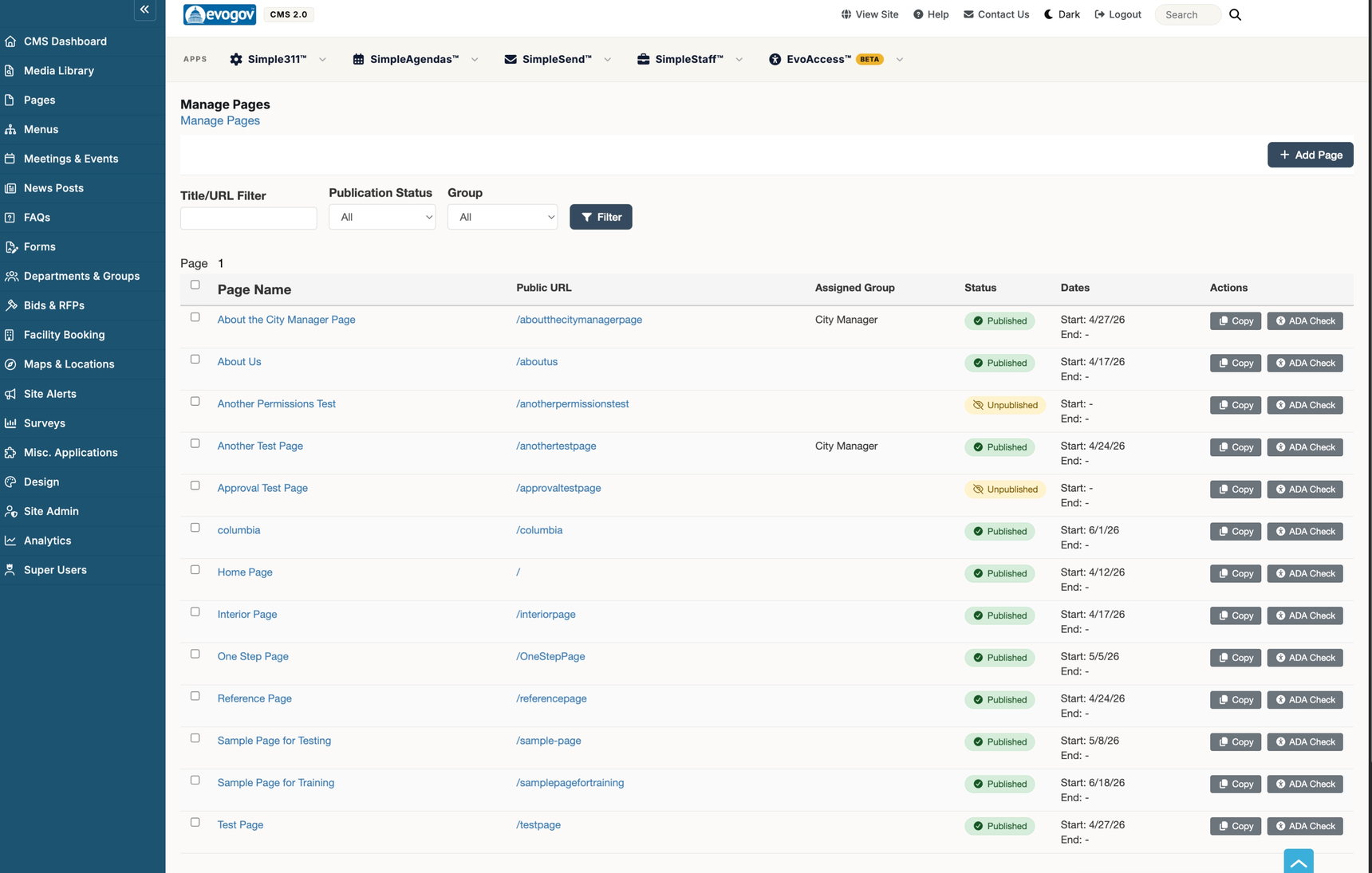
Go to Left menu › Pages to open the Manage Pages list. Each row shows the page title, its publish status, its department, and when it was last updated.
Use the filter box at the top to search by title or web address.
Filter by publish status (Published, Unpublished, Archived) or by department to narrow the list.
Select several pages with their checkboxes to archive or delete them in one action.
The Manage Pages list. Use the filters at the top to find a page, or click Add Page to start a new one.
2 Add a page
On the Manage Pages screen, click Add Page. This opens the page editor with a fresh, empty page. Give it a Page Title at the top — that is the only thing required to get started.
Tip: You can save a page at any time and keep working on it later. It will not appear on your public website until you publish it (see step 4).
3 Set the page URL, title, and department
Near the top of the editor you will find the main page settings:
Page URL — the web address for this page, shown after your site's address. If you leave it blank it is created from the title. Special characters are removed and letters are made lower-case; you may use hyphens or underscores.
Page Title — the heading shown to visitors and in search results.
Group / Department Options — assign the page to a Primary Department so it appears in that department's menu of pages. There is also a toggle for showing a side menu.
Note: If the URL you choose is already used by another page, a number is added to keep it unique. If that keeps happening, pick a slightly different name.
4 Control visibility and publishing
Use the Publish Status setting to decide whether the page is live:
Status
What it means
Published
Live and visible to everyone on your website.
Unpublished
Hidden from the public; only staff can see it in the admin.
Draft
A work in progress, not yet visible.
Scheduled
Set automatically when you enter a future start date — the page goes live on that date.
Archived
Kept for reference but removed from the live site.
The Publish Dates: Start / End fields let you schedule when a page appears and when it expires. Enter a future start date and the page is automatically marked Scheduled. Enter an end date and the page hides itself after that day.
Careful: You cannot set an end date that is already in the past — the system will ask you to fix it, since it would hide the page immediately.
5 Add content, slideshows, and galleries
The page's body lives on the Content tab, where you type and format text using the Page Editor. See the Page Editor guide for what every toolbar button does, including how to insert images and document links from your Media Library.
You can also add richer elements to a page:
To place a rotating banner, open the Applications tab, click Add Application, and choose a Slideshow. See the Slideshows guide.
To feature a set of photos, build a Photo Gallery and link to it from your page or menu.
6 Edit or delete a page
From Left menu › Pages, click a page to open it. Make your changes and click Save Page. Use the Preview button to see how the page will look before you publish.
To remove a page, open it and choose Delete Entire Page, or select it on the Manage Pages list and use the bulk delete action.
Note: Editing a page that is currently Published may require reviewer privileges. If you do not have them, ask a Content Admin to make the change, or save your work as a Draft.
7 Find thin pages with the Empty Page Report
The Empty Page Report lists pages that have little or no content — often ones that were started and never finished. Each row links straight to that page so you can fill it in or delete it. You can also download the report as a spreadsheet (CSV) to work through the list offline.
Tip: Run this report before a big launch to catch any placeholder pages you forgot to complete.
Next steps
Learn every editor button in the Page Editor guide.