GETTING STARTED
Upload a Document and Link to It
Put a PDF (or Word file, or photo) on your website so visitors can open it: upload it once to the Media Library, then link to it from a page or a menu.
Before you begin
Have the file on your computer. Almost anything works — PDF, Word, Excel, PowerPoint, JPG, PNG — up to 250 MB. If you have a choice, a PDF is the friendliest thing to put on a public website because it opens the same way for everyone.
Know which page the link should live on. If that page does not exist yet, make it first: Add a Page and Put It in the Menu.
Files on your website live in one place, the Media Library. You upload a file there once, and then point to it from as many pages, posts and menus as you like. Upload first, link second.
1 Upload the file to the Media Library
Go to Left menu › Media Library. It looks like the folders on your computer. Open the folder where the file belongs — many sites keep a documents folder, or one per department — then drag the file from your computer onto the file list, or click Upload and choose it.
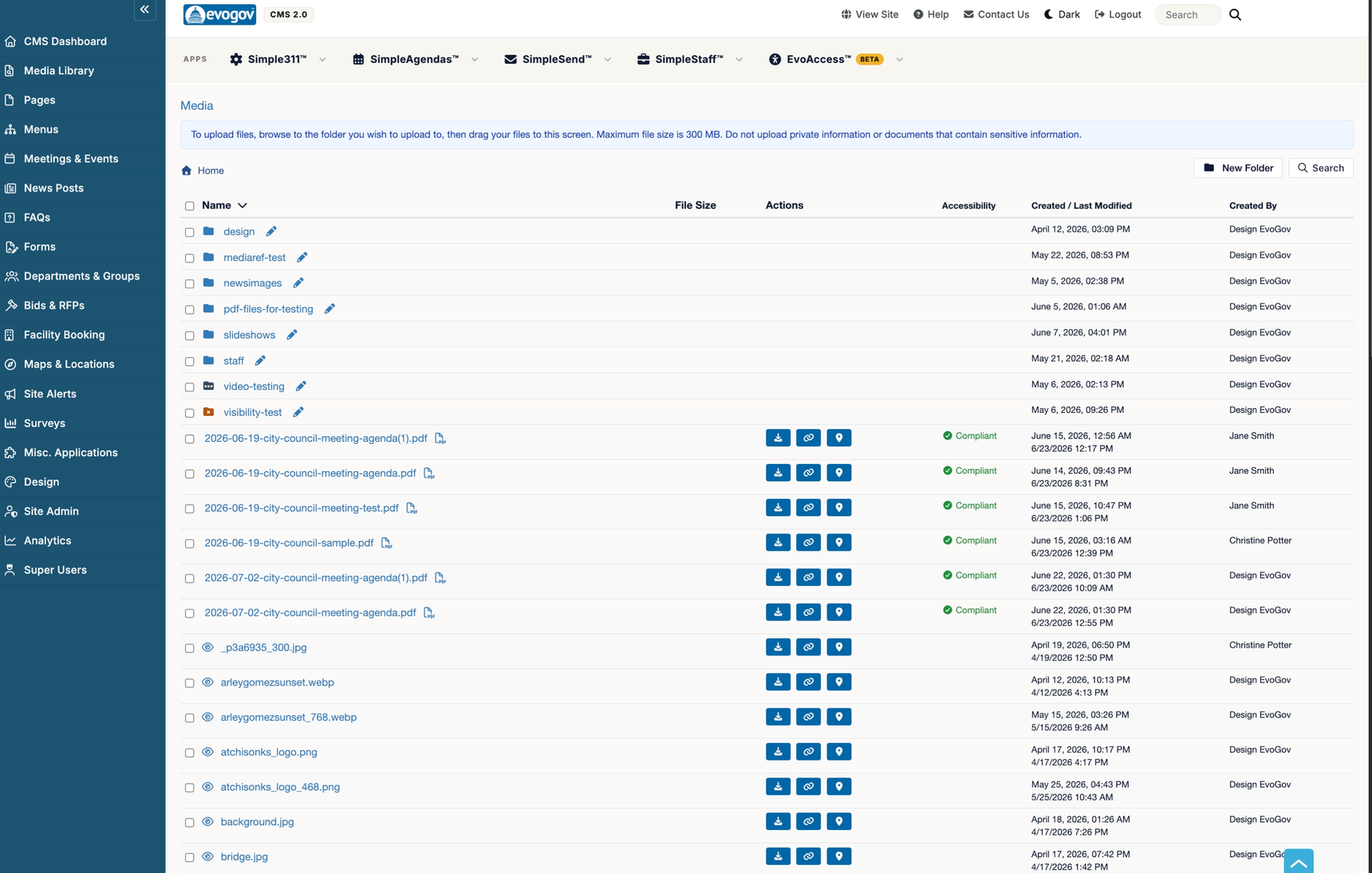
A progress bar runs and the file appears in the list. Its name is tidied automatically: Trash Schedule (FINAL).pdf becomes trash-schedule-final.pdf. That is normal.
2 Open the page where the link should go
Go to Left menu › Pages and click the page. On the Content tab, click into the text at the exact spot where the link should appear — at the end of a sentence like Download the schedule:, or on its own line.
3 Insert the link with one click
Click the blue Insert From Media Library button at the far left of the editor toolbar. The Media Library pop-up opens. Find your file (use the search box if you do not remember the folder) and click it.

The pop-up closes and a link appears in your text, using the file's name as the link wording. For a document that is exactly right — a visitor clicks the name and the PDF opens. If you picked an image instead, the picture itself is placed on the page.
4 Save and check
Click Save Page. Then View Site, open the page, and click the link — the document should open in the browser (or download, for Word and Excel files).
Also: linking a document from a menu
Sometimes the document is the destination — a fee schedule or a map that deserves its own spot in the navigation. Go to Left menu › Menus, open the menu, click Add Item, choose File across the top of the pop-up, click Select Media File and pick the document. Set the Link Label to what visitors should see, tick Open in new tab so they do not lose their place on your site, click Apply, then Save Menu. (The full menu walk-through is in Add a Page and Put It in the Menu.)
Also: replacing a document with a new version
Next year, when the schedule changes, do not upload a second file and re-link every page. Open the old file in the Media Library, choose the option to upload a replacement file, and pick the new version. Every page and menu that pointed at the old file now opens the new one, and links people have bookmarked keep working. The old version is kept as a backup.
If something looks wrong
| What you see | What to do |
|---|---|
| The upload is refused with a message about type or size. | The file is over 250 MB or an unusual type. Save it as a PDF, or compress a large PDF (most PDF programs have a “reduce size” option), then try again. |
| I clicked the file in the pop-up and a picture appeared instead of a link. | You picked an image (JPG/PNG). That is how images are meant to insert. If you wanted a link to the image file itself, type the link wording, select it, click the chain-link icon and paste the file's address. |
| The link on the live page says “not found”. | The file was renamed, moved or deleted in the Media Library after the link was made. Open the page, delete the old link and insert the file again from its new spot. |
| I cannot find the file in the pop-up. | Use the search box at the top of the pop-up and type part of the name (remember it was made lower-case with hyphens). |
Next steps
- The Media Library guide covers folders, alt text, finding where a file is used, and cleaning up files nobody links to.
- Government PDFs have accessibility obligations. EvoAccess checks every PDF you upload and can fix many problems automatically.
- Every editor button, including tables and images, is in the Page Editor guide.