USER GUIDE
Media Library
The Media Library is where every picture, PDF, Word document, and other file for your website lives. Upload files here once, then use them on any page, post, slideshow, or gallery.
Before you begin
Nothing needs to be set up first — the Media Library works on a brand-new, empty site. You do need to be signed in as a Staff Member. A few things are handy to know:
- Files can be up to 250 MB each.
- File names are automatically tidied up: spaces and special characters are removed, and everything is made lower-case. So My Photo (Final).jpg becomes my-photo-final.jpg.
- You can organize files into folders, but you do not have to. Many sites keep everything in a few simple folders like images and documents.
You will find the Media Library in the left sidebar: Left menu › Media Library. It opens as a file browser that looks a lot like the folders on your own computer.
1 Open and browse the Media Library
Go to Left menu › Media Library. You will see a list of your files and folders with columns for Name, Size, Updated, and Created.
- Click a folder to open it. A breadcrumb trail at the top shows where you are; click any part of it to jump back up.
- Use the search box to find a file anywhere in the library by typing part of its name.
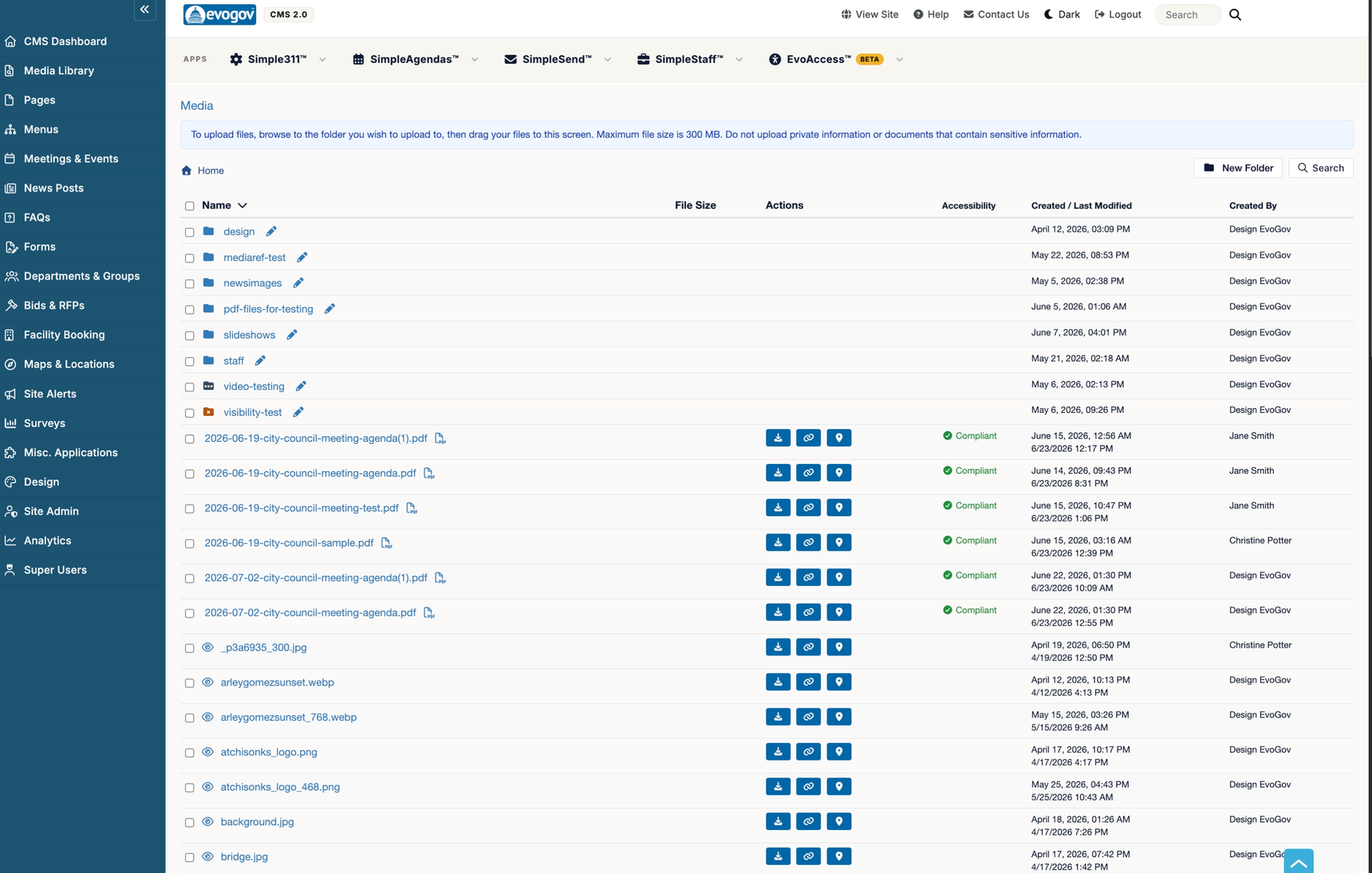
2 Create a folder to organize files
Open the folder you want the new folder to live inside (or stay at the top level), then choose New Folder. Type a Folder Name and save. The name may only contain letters, numbers, spaces, hyphens, and underscores.
3 Upload files
Open the folder where you want the files to land, then either:
- Drag and drop one or more files from your computer straight onto the file list, or
- Use the Upload button and pick files from your computer.
A progress bar appears while each file uploads. Large files upload in pieces, so they will resume rather than start over if your connection hiccups.
4 Rename a file or add alt text
Click a file to open its details. You can change the file name and, for images, the alt text (a short description used by screen readers and search engines). Save your changes.
5 See where a file is used (File References)
Before you rename or delete a file, it helps to know where it appears. Each file has a Locate File action that opens a Used in page. This page lists every page, news post, FAQ, slideshow, event, and content block that references the file, with a link to each one.
If you have just added or moved a file and the list looks out of date, click Re-scan now to refresh it.
6 Replace a file with a new version
When you have a corrected document or an updated photo and you want it to appear everywhere the old one was used, replace the file instead of uploading a new one. Open the file's details and choose the option to upload a replacement file. The old version is backed up, the new file takes its place, and every page that used it now shows the new version automatically.
7 Clean up with the Orphan Files Report
Open the Orphan Files Report to see files that are not used anywhere on your website. The report lists the largest unused files first, so you can reclaim the most storage quickly. Each row has a link to that file's Used in page so you can confirm before deleting.
8 Delete a file
Once you are sure a file is no longer needed — the Used in page shows nothing depends on it — delete it from its details view.
What kinds of files can I upload?
| Type | Examples |
|---|---|
| Images | JPG, PNG, GIF (for photos, logos, banners) |
| Documents | PDF, Word, Excel, PowerPoint (for agendas, forms, reports) |
| Other | Audio, video, archives, and common web files |
Very large images are automatically resized for the web when they appear on a page, so you do not have to shrink photos yourself before uploading.
Next steps
Now that your files are in place, put them to work:
- Add images and document links to a page with the Pages guide and the Page Editor.
- Build a rotating banner with the Slideshows guide.
- Show a group of photos together with the Photo Galleries guide.